
QuickBooks Error Code H101
Let’s Dive in to see…
How to Fix QuickBooks Error Code H101

QuickBooks Error Guide
How to Fix QuickBooks Error H101
You clicked on a company file. QuickBooks froze. Then the dreaded message: Error H101. Your whole morning just came to a halt. If this sounds familiar, you are not alone. Error H101 is one of the most common multi-user setup issues QuickBooks Desktop users run into — and the good news is, it is almost always fixable without calling IT support.
What Exactly Is QuickBooks Error H101?
Error H101 appears when QuickBooks Desktop tries to open a company file that lives on another computer and cannot reach it. The error message typically reads: "This company file is on another computer, and QuickBooks needs some help connecting."
It is specifically a multi-user mode error — meaning it only shows up when QuickBooks is set up across a network where the company file sits on a host computer and other machines try to access it. Single-user setups never see this error.
Why Does Error H101 Happen?
There is rarely just one cause. It is usually a combination of network and configuration issues. Here are the four most common culprits:
Firewall Blocking
Your firewall or antivirus is treating QuickBooks like a threat and blocking the ports it needs to communicate across the network — most commonly ports 8019 and 56728.
Wrong Host Setup
Multi-user hosting is not properly enabled on the computer that holds the company file. If the host machine does not have QuickBooks Database Server Manager running, nobody else can connect.
Damaged .ND File
The Network Data (.ND) file that sits alongside your company file acts as a map for QuickBooks to find it on the network. If this file is corrupted or outdated, QuickBooks simply gets lost.
DNS / IP Issue
QuickBooks cannot resolve the hostname of the computer hosting the company file. This usually happens when a computer IP address has changed or DNS settings are not configured correctly on the network.
How Do You Know It Is Specifically Error H101?
Error H101 comes with a fairly unmistakable set of symptoms. Here is what you are likely seeing:
An error popup appears the moment you try to open or switch to a company file stored on the network — not on a local drive.
QuickBooks either freezes on the loading screen or crashes entirely after attempting to connect.
The error code shown is H101 — sometimes alongside related codes like H202, H303, or H505, all of which are variations of the same multi-user connection problem.
The error only happens on workstations — not on the host computer that physically holds the company file. If the host machine can open the file fine, it is a network issue, not a file issue.
Step-by-Step Fix for QuickBooks Error H101
Work through these in order. Most people resolve it by Method 2 or 3.
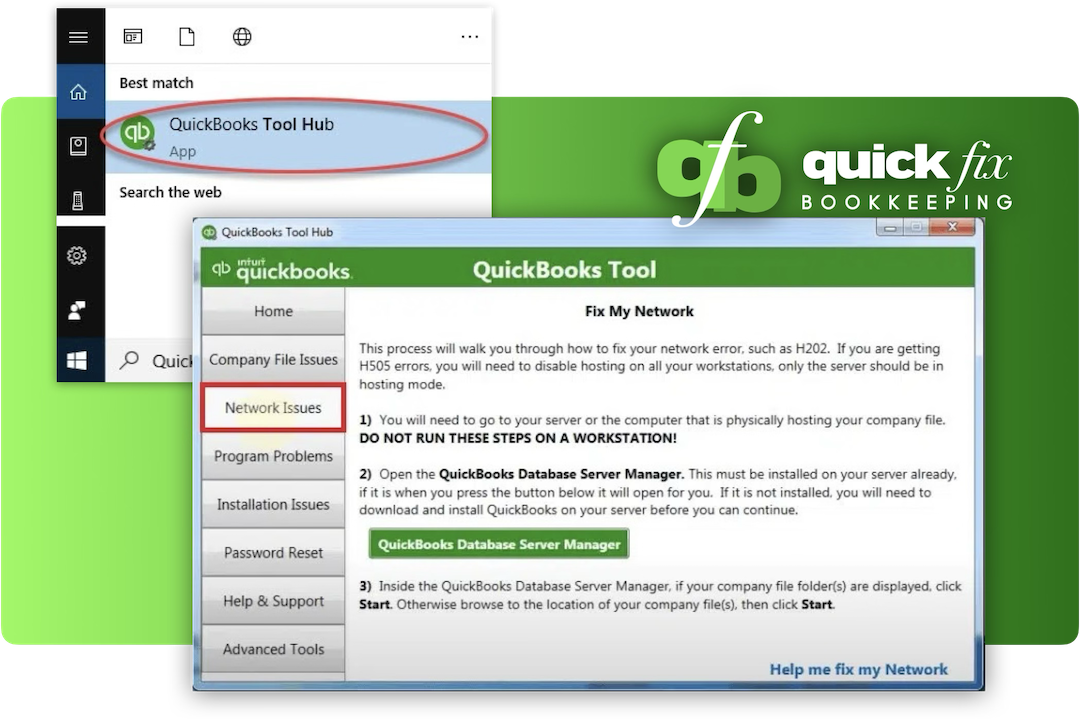
Quick Diagnostic — Which Fix Do You Need?
Not sure where to start? Answer these three questions to find the fastest path:
Can the host computer open the file just fine?
Yes → It is a network or connection problem between workstations. Start with Method 2.
No → The file itself may be damaged. Use Method 1 and also check file permissions on the host machine.
Did you recently update QuickBooks or Windows?
Yes → The update likely changed firewall settings. Go straight to Method 3.
No → Start with Method 1 then move to Method 2 if it persists.
Is this happening on all workstations or just one?
All workstations → Almost certainly a hosting or Database Server Manager issue. Method 2 is your answer.
Just one machine → That specific computer has a local firewall or network configuration issue. Apply Method 3 on that machine only.
Frequently Asked Questions About Error H101
Related QuickBooks Errors Worth Knowing
If you are dealing with Error H101, there is a chance you will also encounter these related multi-user errors in your setup. They share the same root causes and respond to the same fixes:
Still Seeing Error H101?
We Fix This Every Day — Usually Within Hours
The steps above resolve Error H101 for most people. But if you have been through all three methods and QuickBooks still will not cooperate — it is time to call in a certified ProAdvisor. Our team has resolved this exact error dozens of times across all kinds of network setups. No lengthy diagnostics, no guesswork, no back-and-forth.
Book a Free 30-Minute ConsultationNo obligation. Certified Intuit ProAdvisors. Same-day resolution in most cases.