QuickBooks Error Guide
How to Fix QuickBooks Error C=184
QuickBooks was running fine. Then, seemingly out of nowhere, it stopped — an error message landed on your screen reading: "An error has occurred in QuickBooks. Please restart QuickBooks and try again. If you continue to experience this error, please note the C= value — C=184."
At QuickFix Bookkeeping, this is one of the more nuanced errors we help clients through — because C=184 has a cause that most guides completely miss. Understanding it properly is the difference between a five-minute fix and hours of unnecessary troubleshooting.
The QuickFix Bookkeeping Insight
Most guides treat C=184 as a generic file corruption error. It is not always that.
One of the most overlooked causes of Error C=184 is a leap year date mismatch — a quirk specific to QuickBooks Desktop where February 29 falls outside the date range QuickBooks expects for certain reports. This means a business with perfectly healthy files and a clean installation can suddenly see C=184 simply because the calendar turned to a leap year. Knowing this upfront saves you from running diagnostics on a file that does not have a problem.
What Is QuickBooks Error C=184?
Error Code
C=184
QuickBooks Desktop only
Unexpected program error
What it means in plain English
Error C=184 is QuickBooks telling you it encountered something it did not expect and could not handle — either in the data it was trying to process, the file it was trying to access, or the report it was trying to generate. The program exits rather than risk corrupting your data further.
Unlike straightforward installation errors, C=184 can come from several very different root causes — which is why it needs careful diagnosis before you reach for the repair tools.
What Causes QuickBooks Error C=184?
There are five distinct causes — and identifying which one applies to you determines which fix to use first. Skipping this step is why most people spend longer fixing C=184 than necessary.
📅
Leap Year Date Mismatch
UNIQUE TO C=184
In leap years, February has 29 days. QuickBooks Desktop's reporting system can treat this as a date that falls outside an expected range — particularly in quarterly and annual reports. This triggers C=184 even when nothing is actually wrong with your files or installation. If this error appeared around the start of a leap year or when running date-specific reports, this is almost certainly your cause.
💾
Damaged .ND and .TLG Files
The Network Data (.ND) and Transaction Log (.TLG) files that sit alongside your company file have become corrupted. These files are critical for QuickBooks to access and process the company file correctly — particularly in multi-user or networked environments.
🗂️
Corrupted Company File
Data damage within the .QBW company file itself — caused by an improper shutdown, power interruption, or hardware issue — can cause QuickBooks to crash with C=184 when it encounters the damaged portion while processing a report or transaction.
📁
Damaged File Path or Folder
The folder storing your company file has become corrupted, or the file path is too long for Windows to handle cleanly. If moving the file to your desktop fixes the error, this is your cause.
⚙️
Corrupted Installation
A partial or damaged QuickBooks installation — from an interrupted update, failed setup, or conflicts with antivirus software — causes program components to fail unexpectedly mid-operation, resulting in C=184.
How Error C=184 Typically Presents
01
QuickBooks crashes when running a report
The error most commonly surfaces when generating a report — especially date-range reports like P&L, Balance Sheet, or Sales by Period. The program exits abruptly as soon as the report attempts to render.
02
Error appears when opening company file
C=184 can block access to the company file entirely — QuickBooks begins loading and crashes before the file is fully open. This is the most disruptive version of the error.
03
Specific transactions trigger the crash
Trying to open, edit, or save a specific invoice, payment, or payroll entry causes the error every time — while other transactions work fine. This points to data damage at the transaction level within the company file.
04
Error message includes the exact phrase "C=184"
The error popup specifically reads: "An error has occurred in QuickBooks. Please restart QuickBooks and try again. If you continue to experience this error, please note the C= value — C=184." This distinguishes it from similar C-series errors.
How to Fix QuickBooks Error C=184 — Step by Step
Start from Method 1. If the error appeared around a leap year or when running date reports, Method 1 may resolve it in minutes.
METHOD 1
Adjust the Report Date Range
Fix for leap year mismatch — try first
If the error is triggered by leap year date mismatches, this is a two-minute fix that requires no tools whatsoever. Simply adjusting the date range in the affected report corrects the mismatch that is causing QuickBooks to crash.
1
Open QuickBooks and navigate to the report that triggered the error — Profit & Loss, Balance Sheet, or whichever report caused the crash.
2
Click Customize Report at the top of the report window. In the date range fields, manually type in the date range rather than using the preset options like "This Year" or "This Quarter."
3
Avoid using February 29 as a start or end date. If the report needs to cover a full year in a leap year, use January 1 to December 31 rather than a date range that passes through Feb 29 as a boundary.
4
Click OK and run the report. In most leap year cases, the error disappears immediately once the date range is corrected.
QuickFix Bookkeeping note: If this fixes the error, no further action is needed. Your files are fine. This is a known QuickBooks Desktop behaviour in leap years — not a bug you need to report or a sign of anything wrong with your data.
METHOD 2
Rename the .ND and .TLG Files
Safe — no data lost
The .ND and .TLG files are configuration and log files that QuickBooks recreates automatically. Renaming them — not deleting — forces QuickBooks to build fresh, uncorrupted versions. This resolves C=184 when these files are the cause without touching your actual company data.
1
Open File Explorer and navigate to the folder where your QuickBooks company file (.QBW) is stored — usually in C:\Users\Public\Documents\Intuit\QuickBooks\Company Files.
2
Look for files with the same name as your company file but with .ND and .TLG extensions. For example, if your file is CompanyName.QBW, look for CompanyName.ND and CompanyName.TLG.
3
Right-click each file and select Rename. Add .OLD to the end of each filename — for example, CompanyName.ND.OLD and CompanyName.TLG.OLD. Press Enter to confirm.
4
Reopen QuickBooks and open your company file. QuickBooks will automatically recreate fresh .ND and .TLG files. If the error is gone, the old files were the cause.
METHOD 3
Run Verify Data then Rebuild Data
For company file data damage
QuickBooks has built-in tools to diagnose and repair internal data damage — Verify Data confirms the problem exists, and Rebuild Data fixes it. Always run Verify first so you know exactly what you are dealing with.
Before proceeding: Back up your company file first. Go to File → Back Up Company → Create Local Backup. This protects your data in the unlikely event something goes wrong during the rebuild.
1
In QuickBooks, go to File → Utilities → Verify Data. Let it run. If it finds issues it will say "Your data has lost integrity." If it says your data is fine, skip to Method 4.
2
If data integrity issues were found, immediately go to File → Utilities → Rebuild Data. QuickBooks will ask you to create another backup — do it.
3
Allow the rebuild to complete fully — this can take anywhere from a few minutes to over an hour depending on your file size. Do not interrupt it.
4
Once complete, run Verify Data again to confirm all issues were resolved. Then reopen your company file and test whether C=184 still appears.
METHOD 4
Move the Company File to a New Location
For damaged folder or long file path
If the folder storing your company file has become corrupted — or if the file path has grown too long for Windows — moving the file to a new location resolves the error immediately. This is also a useful diagnostic step: if the file opens fine from a new location, the original folder was the problem.
1
Navigate to the folder containing your company file. Right-click the .QBW file and select Copy. Go to your Desktop and paste it there.
2
Hold Ctrl and double-click the QuickBooks icon to open it in No Company Open mode. Then click Open or Restore an Existing Company and navigate to the Desktop copy of your file.
3
If the file opens without error from the Desktop — the original folder was the problem. Create a new folder in a simple path like C:\QBCompanyFiles\ and move the file there permanently.
4
If the error persists even from the Desktop location, the issue is in the file itself rather than the folder. Move on to Method 5.
METHOD 5
Run QuickBooks File Doctor
Comprehensive diagnostic and repair
If the previous methods have not resolved C=184, QuickBooks File Doctor is your most powerful tool — it can repair both company file damage and network connectivity issues that the other methods may have missed.
1
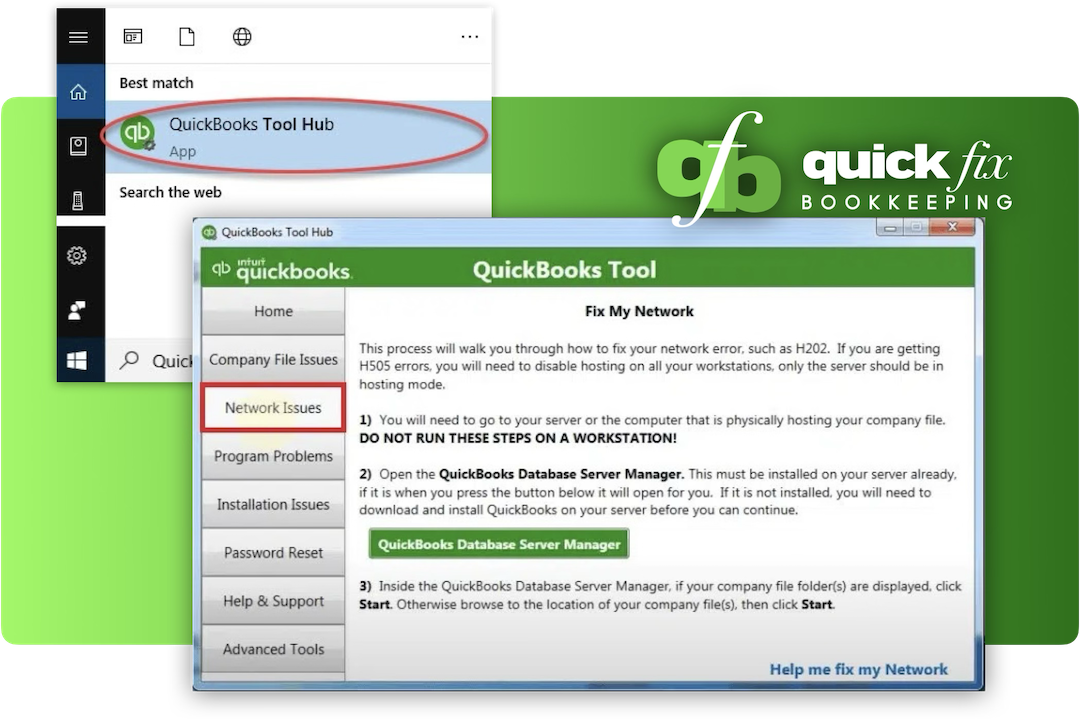
Download and install QuickBooks Tool Hub from Intuit's official website. Open it once installed.
2
Click Company File Issues then select Run QuickBooks File Doctor. Choose your company file from the dropdown or browse to it manually.
3
Select Check your file and network to run a full diagnostic. Enter your admin password when prompted and let the scan complete — typically 10 to 20 minutes.
4
Restart your computer after the scan. Open QuickBooks and test. Note: the scan may show "unsuccessful" even when it has actually repaired issues — always test QuickBooks after running it regardless of what the scan summary says.
QuickFix Bookkeeping note: QuickBooks File Doctor has a known quirk — it sometimes reports "the scan was unsuccessful" even when it has fixed the underlying problem. Do not let an unsuccessful scan message stop you from testing whether QuickBooks works. Always reopen the software and try the action that was previously causing C=184 before concluding the tool did not help.
Diagnose Your Situation — Which Fix First?
| Your situation |
Likely cause |
Start with |
| Error appeared in Feb or early March of a leap year |
Leap year date mismatch |
Method 1 — date range |
| Error appears when opening a specific report |
Date or data issue in report |
Method 1 — date range |
| Multi-user setup or network access issues |
Damaged .ND / .TLG files |
Method 2 — rename files |
| Verify Data shows integrity issues |
Company file data damage |
Method 3 — rebuild data |
| File opens from Desktop but not from original location |
Damaged folder or long path |
Method 4 — move file |
| Nothing above has worked |
Deep file or install corruption |
Method 5 or call us |
Frequently Asked Questions About Error C=184
Can Error C=184 cause permanent data loss?
If left unresolved and you continue forcing QuickBooks to run through repeated crashes, there is a small risk of compounding the data damage. That is why we always recommend backing up before troubleshooting. However, for most C=184 cases — particularly the leap year variant — your data is completely intact and the backup is simply a precaution. The QuickFix Bookkeeping rule: back up first, always, before any repair step.
Does C=184 affect all QuickBooks Desktop versions?
Yes — Error C=184 has been documented across QuickBooks Desktop Pro, Premier, Accountant, and Enterprise. The leap year date mismatch variant is particularly prevalent in versions that have not been updated with the latest Intuit patches, as Intuit has addressed this in some release updates. Keeping QuickBooks current reduces the frequency of this specific trigger significantly.
Will renaming the .ND and .TLG files delete any of my data?
No. These files are configuration and log files — not your actual financial data. Renaming them to .OLD simply archives them and prompts QuickBooks to create fresh replacements. Your company file (.QBW) — which holds all your transactions, customers, vendors, and reports — is completely untouched by this process.
Can Error C=184 occur during payroll processing?
Yes — and this is one of the more stressful places to see it. If C=184 surfaces during payroll, it is almost always a data damage issue in a specific payroll transaction or employee record rather than a leap year mismatch. Run Verify Data immediately to identify the affected record. In our experience at QuickFix Bookkeeping, payroll-related C=184 errors are best handled with professional support to ensure payroll integrity is maintained — particularly if the error is blocking a pay run.
How do I prevent Error C=184 from coming back?
Three habits eliminate most recurring C=184 issues: keep QuickBooks updated to the latest release (Intuit patches known error triggers regularly), back up your company file daily using the built-in backup scheduler, and close QuickBooks properly before shutting down your computer rather than force-closing it. If you are in a multi-user setup, also ensure the QuickBooks Database Server Manager is kept updated on the host machine — outdated server manager software is a frequent source of .ND and .TLG file corruption.
Related QuickBooks C-Series Errors
If you are seeing Error C=184 alongside other C-series errors, these pages cover the most closely related ones — they often share the same file-level root causes:
Still Seeing Error C=184?
Five Methods and Still Stuck?
That Is What We Are Here For.
Certified Intuit ProAdvisors · QuickBooks Desktop Specialists
When C=184 persists after all standard fixes, it usually means the damage is at a level that needs hands-on diagnosis — either in the company file itself or at the Windows system level. Our certified ProAdvisors use advanced diagnostic tools to find and fix exactly what is causing the error, without putting your financial data at risk. Most cases are resolved in a single session.
Book a Free 30-Minute Consultation
No obligation. Certified Intuit ProAdvisors. Data integrity protected throughout.

