
QuickBooks Payroll Error PS060
Let’s Dive in to see…
How to Fix QuickBooks Payroll Error PS060

QuickFix Bookkeeping Guide:
How to Resolve QuickBooks Payroll Error PS060
If you encounter the message “Current Enhanced Payroll Service is Unavailable” accompanied by Error Code PS060 in QuickBooks Desktop, it means the software cannot validate your payroll subscription or connect to the necessary Intuit services. This issue prevents payroll processing until it’s resolved.
Below is a systematic guide from QuickFix Bookkeeping to help you troubleshoot and resolve this common QuickBooks payroll error.
Step 1: Perform Essential Checks
Before starting the advanced troubleshooting steps, ensure the following prerequisites are met:
-
Internet Connection: Verify that your computer has a stable, reliable internet connection.
-
System Date/Time: Check that your computer’s date and time settings are accurate. Incorrect settings can interfere with QuickBooks’ ability to validate security certificates and connect to Intuit servers.
-
QuickBooks Mode: Always switch to Single-User Mode before attempting to download payroll or QuickBooks updates.
-
Subscription Status: Confirm that your QuickBooks and Payroll subscriptions are active and have not expired.
Step 2: Address Account and Software Issues
The most frequent causes of PS060 relate to billing and outdated software.
A. Update Billing and Subscription Information
The error often occurs if your payment information or subscription expiry date is incorrect or expired.
- Log in to your Intuit Account associated with QuickBooks.
- Navigate to the Billing & Subscription section.
- Select the company file requiring the update.
- Review and confirm that all billing and payment details are current. Make any necessary corrections and save the changes.
- After updating, log out and then log back in to QuickBooks to force the system to re-validate the subscription.
B. Download the Latest Software Updates
Intuit frequently releases critical updates. Running an outdated version is a major cause of connectivity errors.
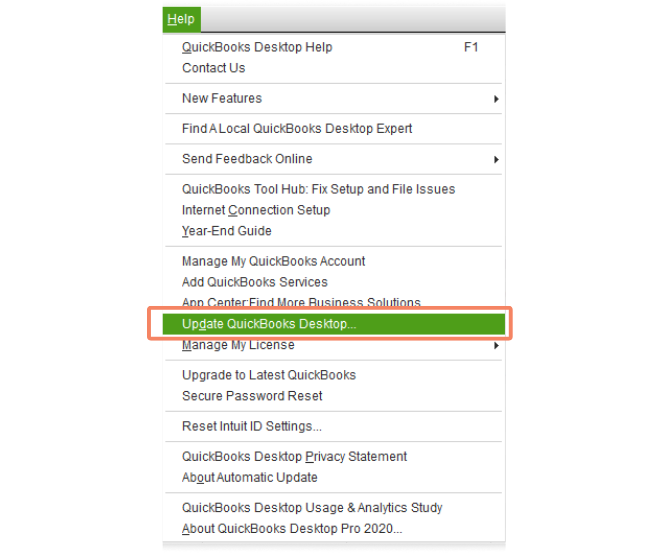
- In QuickBooks, go to the Help menu.
- Select Update QuickBooks Desktop. —As shown in the picture–>
- Go to the Update Now tab and select all available updates.
- Click Get Updates and allow the download to complete.
- Restart QuickBooks when prompted to install the updates.
C. Check Intuit Server Status
If you’ve completed the steps above and the error persists, the issue might be on Intuit’s end.
- Check the official QuickBooks Service Status page (you may need to search Google for “Intuit Service Status”). If the payroll services are marked as unavailable, you must simply wait until Intuit resolves the issue.
Step 3: Check System Security and Connectivity
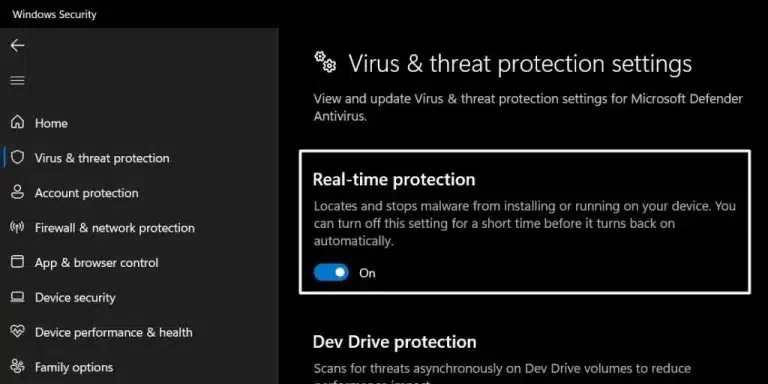
System settings and third-party software can inadvertently block QuickBooks.
A. Review Third-Party Security Software
Antivirus programs or firewalls can sometimes flag QuickBooks processes as threats, blocking them from connecting to Intuit servers.
-
Temporarily disable your antivirus or firewall and try updating payroll.
-
If the update succeeds, you must add QuickBooks Desktop and its related processes/ports as exceptions in your security software settings.
B. Use the QuickBooks Tool Hub for Repair
If the core QuickBooks installation is damaged, a full repair is needed.
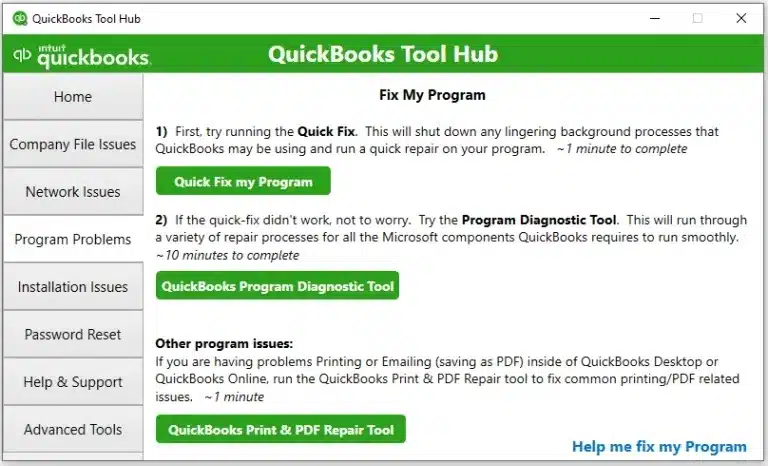
- Download the QuickBooks Tool Hub from the Intuit website (if you don’t already have it installed).
- Close QuickBooks Desktop and run the Tool Hub.
- Select Program Problems.
- Run the Quick Fix my Program tool first.
- If the issue remains, return to the Program Problems tab and run the QuickBooks Install Diagnostic Tool.
- Restart your computer and check for the error.
C. Flush Your System’s DNS (Advanced)
Flushing the Domain Name System (DNS) cache can resolve old, bad network connection data.
- Press the Windows Key + R to open the Run command.
- Type
cmdand press Enter to open the Command Prompt. - In the black command window, type the following command exactly as shown, and press Enter:
ipconfig /flushdns
- You should receive a message confirming that the DNS Resolver Cache was successfully flushed.
The QuickFix Solution: Secure & Stress-Free Migration
-
At QuickFix Bookkeeping, we take the worry out of migration. We handle the entire process, from initial data assessment to final setup and training.
-
Our expert team ensures a flawless transfer of your financial data, including historical transactions, customer lists, vendor information, and more.
Whether you prefer the power of a locally installed system or the flexibility of cloud-based access, we are experts in both. We’ll help you decide which one is the perfect fit for your business needs.

The Power of QuickBooks Desktop: Uncompromised Control.
Ideal for businesses that require robust reporting, multi-user access on a local network, or industry-specific functionalities (e.g., inventory management). We ensure a seamless transfer of your complex data from other systems or older versions of QuickBooks to the latest Desktop platform.
Key Benefits:
-
- Full data transfer including historical data.
- Installation and setup on your local network.
- Custom chart of accounts and item setup.
- Post-migration support and training.
The Freedom of QuickBooks Online: Access Anywhere, Anytime.
Perfect for business owners who need to manage their finances on the go, collaborate with their team or accountant easily, and access real-time financial data from any device. We’ll make your move to the cloud simple and secure.
Key Benefits:
-
-
Secure transfer of all financial records to the cloud.
-
Connecting bank and credit card accounts.
-
Setup of cloud-based invoicing and payment systems.
-
Training on the QBO interface and mobile app.
-
Our Migration Process: Quick, Easy, and Secure
At Quickfix Bookkeeping, we understand that migrating accounting software can feel daunting. Our expert team follows a meticulous, three-step process to ensure a flawless transition with minimal disruption to your business operations.
1. Consultation & Assessment:
We discuss your business needs, review your current software, and recommend the best QuickBooks platform (Desktop or Online) for you.
2. Secure Migration:
Our team executes the data transfer, meticulously checking for accuracy and integrity. We’ll keep you informed every step of the way.
3. Final Setup, Training & Ongoing Support:
We finalize your setup, connect bank feeds, and provide personalized training to you and your team so you can hit the ground running.
Why Trust QuickFix Bookkeeping With Your Financial Data?
- Expertise: Our team consists of Certified QuickBooks ProAdvisors with years of experience in data migration.
- Security: We use industry-leading security protocols to ensure your sensitive financial data is protected throughout the entire process.
- Personalized Service: We don’t believe in one-size-fits-all solutions. We take the time to understand your unique business needs and recommend the best path forward.
- Peace of Mind: With our meticulous process and ongoing support, you can be confident that your transition will be accurate and hassle-free.
Frequently Asked Questions
What is a data migration and why do I need it?
Data migration is the process of securely transferring all your financial information—including customer lists, vendor details, historical transactions, and reports—from your current accounting system to a new one, like QuickBooks Desktop or QuickBooks Online. You need it to ensure all your financial records are complete and accurate in your new system, preventing data loss and a disorganized transition.
How long does the migration process take?
The duration of the migration depends on the complexity and volume of your data. A simple file may take a few hours, while a larger, more complex file with extensive history could take a few days. We provide a clear timeline during your initial consultation.
What data can be migrated?
We can migrate a comprehensive range of data, including:
-
Chart of Accounts
-
Customer and Vendor Lists
-
Historical Invoices and Bills (paid and unpaid)
-
Banking and Credit Card Transactions
-
Journal Entries
-
Inventory Items (with some limitations)
-
Payroll history (with specific conditions)
Will I lose any data during the migration?
Our professional process is designed to prevent data loss. We always start by creating a full backup of your original file before beginning any transfer. We also perform a post-migration audit to ensure the data in your new QuickBooks file matches the source data.
Can I access my old data after the migration?
Yes. We will not alter your original accounting file. Your old data will remain intact, allowing you to access it for historical reference or in case you need to run specific reports from the past.
Why should I migrate to QuickBooks Desktop?
QuickBooks Desktop is ideal for businesses that prefer a powerful, locally-installed accounting solution. It offers robust reporting, advanced inventory management, and industry-specific versions (e.g., Contractor, Manufacturing & Wholesale), providing more control and functionality for complex business needs.
Can you migrate my data from an older version of QuickBooks Desktop to a newer one?
Absolutely!
This is a common service we provide. We’ll upgrade your company file to the latest version of QuickBooks Desktop, ensuring you have access to the newest features and security updates. We have Certified PRO Advisors to take care all your QuickBooks needs.
What about my multi-user setup and integrations?
We’ll assist with the installation and configuration of QuickBooks Desktop across your network for multi-user access. We also help reconnect your business applications and third-party integrations to the new file.
Why should I migrate to QuickBooks Online?
QuickBooks Online (QBO) offers the flexibility of a cloud-based platform. It’s perfect for business owners who need to access their financials from anywhere, on any device. QBO also simplifies collaboration with your accountant and automates many tasks, such as bank feeds and invoicing.
What are the main differences between QuickBooks Desktop and QuickBooks Online for my business?
While both are powerful, QBO is designed for accessibility and automation, while QuickBooks Desktop offers deeper customization and offline functionality. We’ll work with you to analyze your business needs, such as multi-user requirements, inventory complexity, and reporting needs, to recommend the best option.
Will my bank and credit card transactions transfer automatically after the migration?
No, bank and credit card feeds are not automatically transferred. After the migration is complete, we’ll guide you through the process of securely linking your bank and credit card accounts to your new QuickBooks Online file to begin downloading new transactions.
How will my payroll data be handled during a migration to QuickBooks Online?
Due to the nature of payroll security and a different system structure, detailed payroll history (individual paychecks) may not transfer directly. We will ensure all employee information and year-to-date totals are set up correctly so you can continue running payroll seamlessly from your new QBO account.
Need Further Assistance?
If you have performed all the above troubleshooting steps and the error PS060 remains, please contact the QuickFix Bookkeeping support team.
We are here to provide specific, hands-on assistance to get your payroll running smoothly again.