
QuickBooks “H” Series Error – H101, H202, H303, or H505
Let’s Dive in to see…
How to Fix QuickBooks “H” Series Error – H101, H202, H303, or H505

QuickFix Bookkeeping Guide:
How to Resolve Troubleshooting QuickBooks “H” Series Errors: H101, H202, H303, and H505
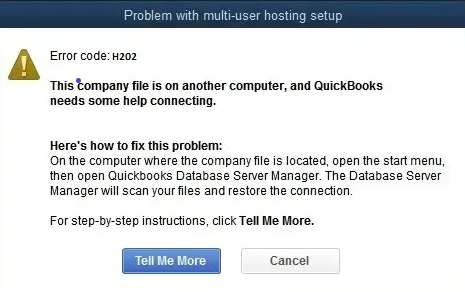
If you are trying to open your company file in multi-user mode and find yourself staring at an error code starting with “H,” you aren’t alone. At QuickFix Bookkeeping, we know how to fix these errors. These are among the most common—and frustrating—roadblocks for small business owners.
These errors generally signify that something is preventing your workstation from communicating with the server where your company file is hosted.
What Do These Error Codes Mean?
While they all point to connectivity issues, each code tells a slightly different story:
-
H101: QuickBooks is trying to access a file on another computer, but that computer requires manual configuration.
-
H202: The most common “H” error. It means the workstation cannot reach the server at all.
-
H303: Usually occurs when the company file is located on a computer that requires additional setup to allow multi-user access.
-
H505: Often triggered when multiple computers are trying to act as the “host” for the company file simultaneously.
Common Causes of H-Series Errors
Before diving into fixes, it helps to understand why this is happening. The most frequent culprits include:
- Incorrect Hosting Settings: More than one computer is set to “Host Multi-User Access.”
- Firewall Blocks: Your security software or Windows Firewall is blocking the communication between computers.
- DNS Issues: Your workstation cannot translate the server’s name into an IP address.
- Damaged .ND File: The Network Descriptor (.nd) file, which helps QuickBooks find the company file, is corrupted.
DIY Quick Fixes to Try First
Before calling for technical support, try these three steps to resolve the issue:
1. Check Your Hosting Settings
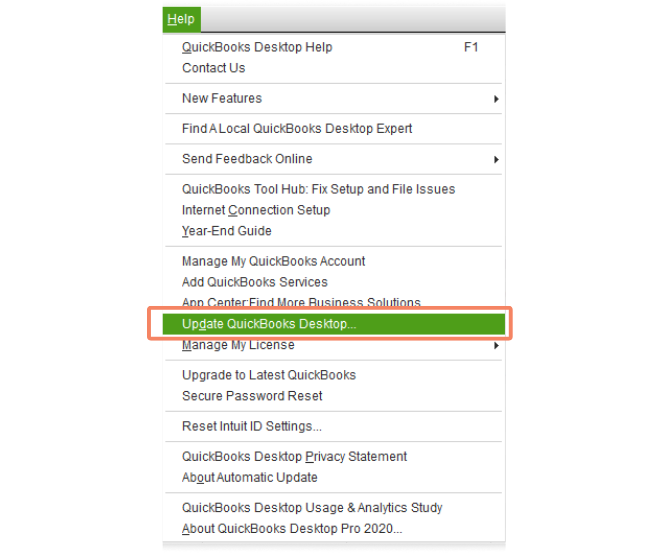
On every workstation (not the server), open QuickBooks and go to File > Utilities.
-
If you see “Host Multi-User Access,” leave it alone.
-
If you see “Stop Hosting Multi-User Access,” click it. Only the server should be hosting.
2. Use the QuickBooks Database Server Manager
On your server computer, open the QuickBooks Tool Hub and run the Database Server Manager.
-
Select “Start Scan.” This often repairs the connection and resets the .ND files automatically.
3. Ping Your Server
Test the connection manually.
-
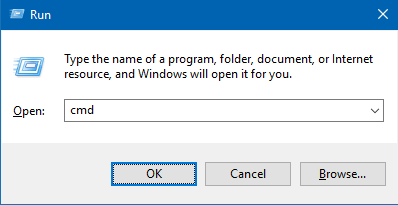
Open the Command Prompt on your workstation.
-
Type
ping [Server Name]and hit Enter. -
If you get a “Request Timed Out,” your network is the problem, not your software.
When to Call the Professionals
Network errors can be complex. If you’ve tried the steps above and still see an H202 or H505 error, it may be time to look at your server’s firewall ports or DNS configuration.
At QuickFix Bookkeeping, we specialize in getting your books back online so you can focus on running your business. We don’t just fix the error; we optimize your file setup to prevent future crashes.
Don’t let a technical glitch stall your productivity. —
Would you like me to draft a technical guide on how to configure Windows Firewall ports specifically for QuickBooks
The QuickFix Solution: Secure & Stress-Free Migration
-
At QuickFix Bookkeeping, we take the worry out of migration. We handle the entire process, from initial data assessment to final setup and training.
-
Our expert team ensures a flawless transfer of your financial data, including historical transactions, customer lists, vendor information, and more.
Whether you prefer the power of a locally installed system or the flexibility of cloud-based access, we are experts in both. We’ll help you decide which one is the perfect fit for your business needs.
Our Migration Process: Quick, Easy, and Secure
At Quickfix Bookkeeping, we understand that migrating accounting software can feel daunting. Our expert team follows a meticulous, three-step process to ensure a flawless transition with minimal disruption to your business operations.
1. Consultation & Assessment:
We discuss your business needs, review your current software, and recommend the best QuickBooks platform (Desktop or Online) for you.
2. Secure Migration:
Our team executes the data transfer, meticulously checking for accuracy and integrity. We’ll keep you informed every step of the way.
3. Final Setup, Training & Ongoing Support:
We finalize your setup, connect bank feeds, and provide personalized training to you and your team so you can hit the ground running.
Why Trust QuickFix Bookkeeping With Your Financial Data?
- Expertise: Our team consists of Certified QuickBooks ProAdvisors with years of experience in data migration.
- Security: We use industry-leading security protocols to ensure your sensitive financial data is protected throughout the entire process.
- Personalized Service: We don’t believe in one-size-fits-all solutions. We take the time to understand your unique business needs and recommend the best path forward.
- Peace of Mind: With our meticulous process and ongoing support, you can be confident that your transition will be accurate and hassle-free.
Frequently Asked Questions
What is a data migration and why do I need it?
Data migration is the process of securely transferring all your financial information—including customer lists, vendor details, historical transactions, and reports—from your current accounting system to a new one, like QuickBooks Desktop or QuickBooks Online. You need it to ensure all your financial records are complete and accurate in your new system, preventing data loss and a disorganized transition.
How long does the migration process take?
The duration of the migration depends on the complexity and volume of your data. A simple file may take a few hours, while a larger, more complex file with extensive history could take a few days. We provide a clear timeline during your initial consultation.
What data can be migrated?
We can migrate a comprehensive range of data, including:
-
Chart of Accounts
-
Customer and Vendor Lists
-
Historical Invoices and Bills (paid and unpaid)
-
Banking and Credit Card Transactions
-
Journal Entries
-
Inventory Items (with some limitations)
-
Payroll history (with specific conditions)
Will I lose any data during the migration?
Our professional process is designed to prevent data loss. We always start by creating a full backup of your original file before beginning any transfer. We also perform a post-migration audit to ensure the data in your new QuickBooks file matches the source data.
Can I access my old data after the migration?
Yes. We will not alter your original accounting file. Your old data will remain intact, allowing you to access it for historical reference or in case you need to run specific reports from the past.
Why should I migrate to QuickBooks Desktop?
QuickBooks Desktop is ideal for businesses that prefer a powerful, locally-installed accounting solution. It offers robust reporting, advanced inventory management, and industry-specific versions (e.g., Contractor, Manufacturing & Wholesale), providing more control and functionality for complex business needs.
Can you migrate my data from an older version of QuickBooks Desktop to a newer one?
Absolutely!
This is a common service we provide. We’ll upgrade your company file to the latest version of QuickBooks Desktop, ensuring you have access to the newest features and security updates. We have Certified PRO Advisors to take care all your QuickBooks needs.
What about my multi-user setup and integrations?
We’ll assist with the installation and configuration of QuickBooks Desktop across your network for multi-user access. We also help reconnect your business applications and third-party integrations to the new file.
Why should I migrate to QuickBooks Online?
QuickBooks Online (QBO) offers the flexibility of a cloud-based platform. It’s perfect for business owners who need to access their financials from anywhere, on any device. QBO also simplifies collaboration with your accountant and automates many tasks, such as bank feeds and invoicing.
What are the main differences between QuickBooks Desktop and QuickBooks Online for my business?
While both are powerful, QBO is designed for accessibility and automation, while QuickBooks Desktop offers deeper customization and offline functionality. We’ll work with you to analyze your business needs, such as multi-user requirements, inventory complexity, and reporting needs, to recommend the best option.
Will my bank and credit card transactions transfer automatically after the migration?
No, bank and credit card feeds are not automatically transferred. After the migration is complete, we’ll guide you through the process of securely linking your bank and credit card accounts to your new QuickBooks Online file to begin downloading new transactions.
How will my payroll data be handled during a migration to QuickBooks Online?
Due to the nature of payroll security and a different system structure, detailed payroll history (individual paychecks) may not transfer directly. We will ensure all employee information and year-to-date totals are set up correctly so you can continue running payroll seamlessly from your new QBO account.
Need Further Assistance?
If you have performed all the above troubleshooting steps and the QuickBooks H series error remains, please contact the QuickFix Bookkeeping support team.
We are here to provide specific, hands-on assistance to get your payroll running smoothly again.